

Reports
Reports
The Reports section allows you to generate, customize and download reports from all your warehouse operations. Access it from Sidebar → Reports.
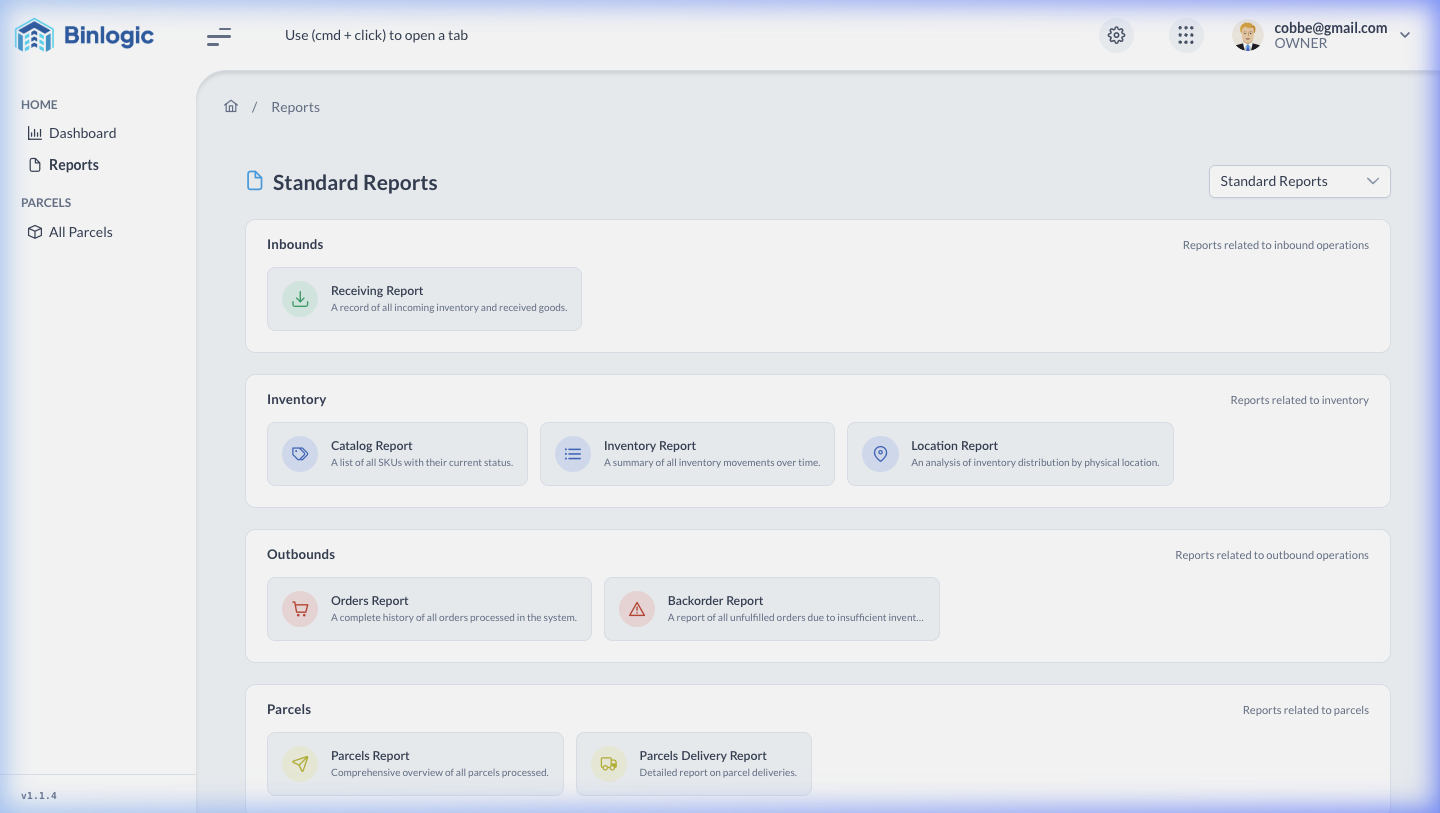
Main view with 8 predefined reports in 4 categories: Inbounds, Inventory, Outbounds and Parcels.
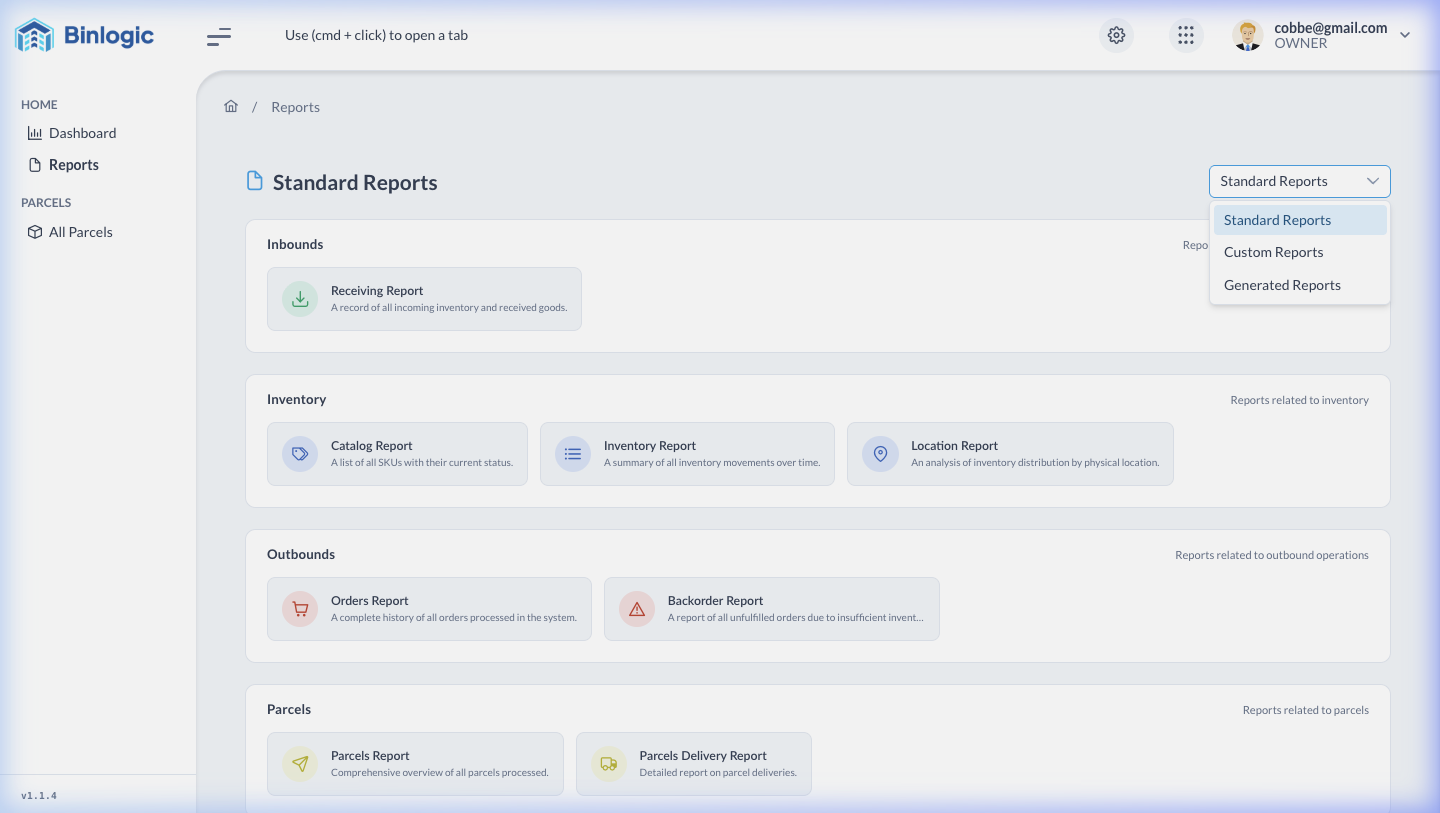
Use the dropdown to switch between Standard Reports, Custom Reports and Generated Reports.
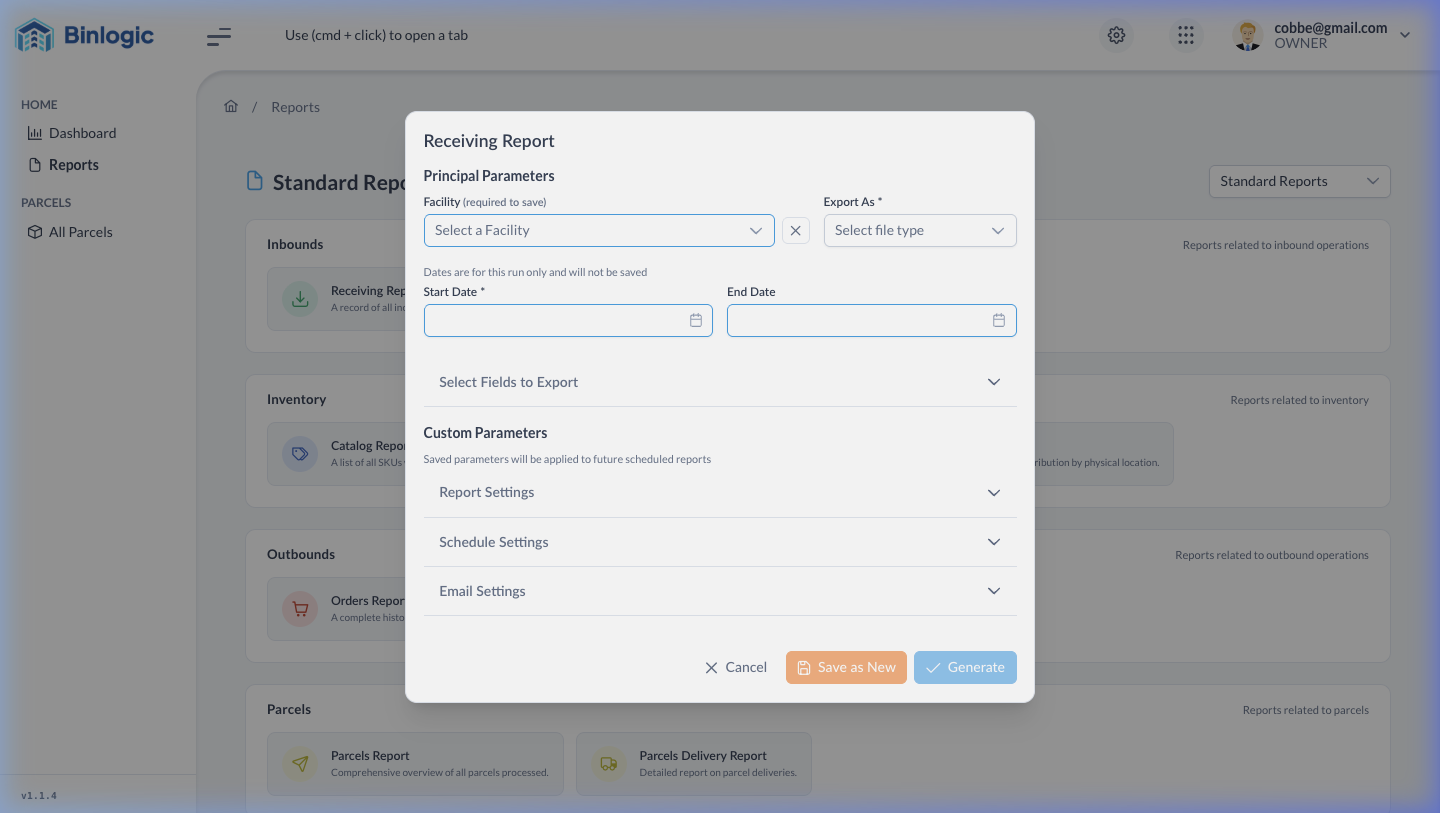
Click any card to open the generation view with filters, data and Generate button.
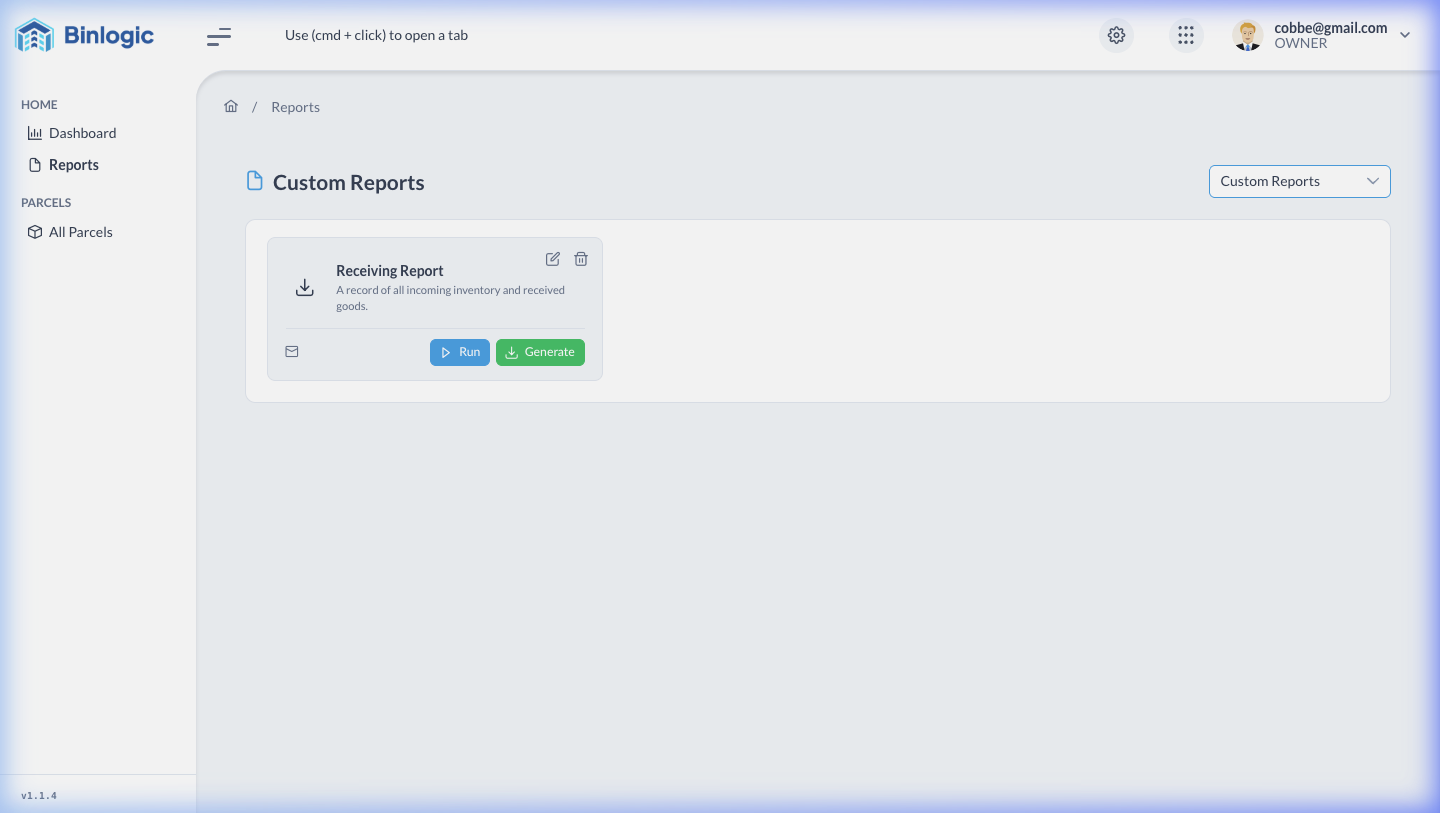
Custom reports you create appear here. They are generated from the Standard Reports view.
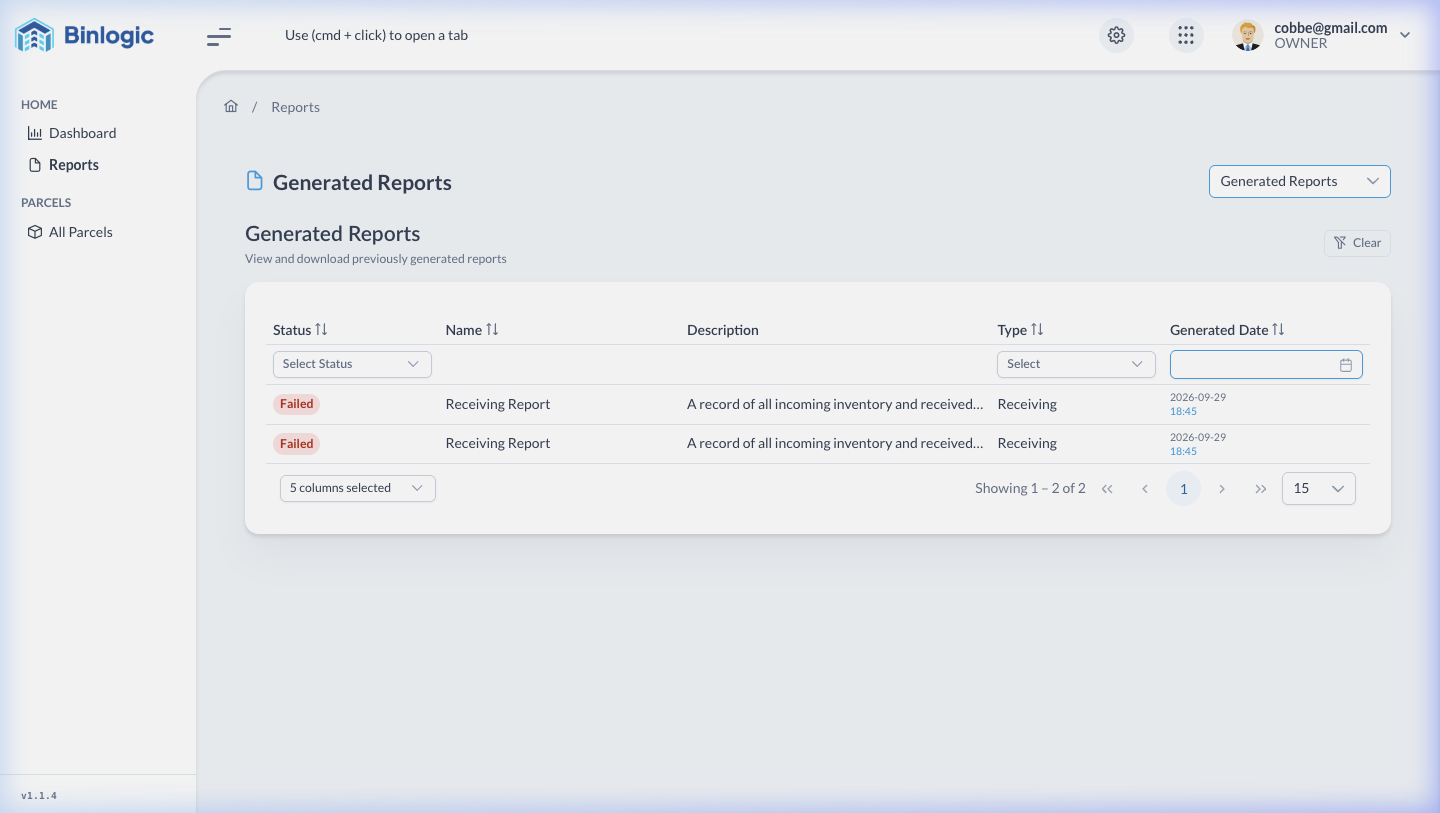
History of already generated reports with filters by Status, Type and date. Download your reports from here.
Demo completed!
Report Types
A dropdown in the top right corner lets you switch between 3 types of reports:
| Type | Description |
|---|---|
| Standard Reports | Predefined system reports grouped by category |
| Custom Reports | Custom reports created from Standard Reports |
| Generated Reports | History of already generated reports, ready for download |
Standard Reports
Standard reports are organized into 4 categories with 8 reports in total:
Inbounds — Incoming operations reports
Section titled “Inbounds — Incoming operations reports”| Report | Description |
|---|---|
| Receiving Report | Record of all incoming inventory and received goods |
Inventory — Inventory reports
Section titled “Inventory — Inventory reports”| Report | Description |
|---|---|
| Catalog Report | List of all SKUs with their current status |
| Inventory Report | Summary of all inventory movements over time |
| Location Report | Inventory distribution analysis by physical location |
Outbounds — Outgoing reports
Section titled “Outbounds — Outgoing reports”| Report | Description |
|---|---|
| Orders Report | Complete history of all processed orders |
| Backorder Report | Report of unfulfilled orders due to insufficient inventory |
Parcels — Package reports
Section titled “Parcels — Package reports”| Report | Description |
|---|---|
| Parcels Report | Overview of all packages |
| Parcels Delivery Report | Delivery status and package tracking |
When clicking a report, you’ll see a detailed view with:
- Filters for date, facility, status depending on the report type
- Generate button to create the report
- Fields table with the results
Custom Reports
Custom Reports are personalized reports you generate from Standard Reports.
When you haven’t created any yet, you’ll see the message:
“No custom reports found. Generate one from the Standard Reports tab.”
To create a Custom Report:
- Go to Standard Reports
- Open a report and configure the desired filters
- Save the configuration as a custom report
Generated Reports
Here you’ll find the history of all reports you’ve generated for download.
Available columns:
| Column | Filter | Description |
|---|---|---|
| Status | Dropdown | Report status (Pending, Ready, Failed) |
| Name | — | Report name |
| Description | — | Content description |
| Type | Dropdown | Type (Receiving, Catalog, Orders, etc.) |
| Generated Date | Date picker | Generation date |