

Integrations
Integrations
The Integrations section centralizes all credentials and configurations needed to connect Binlogic with external systems, APIs and third-party services.
Path: ⚙️ → Developer → Integrations
The page is organized into 4 tabs:
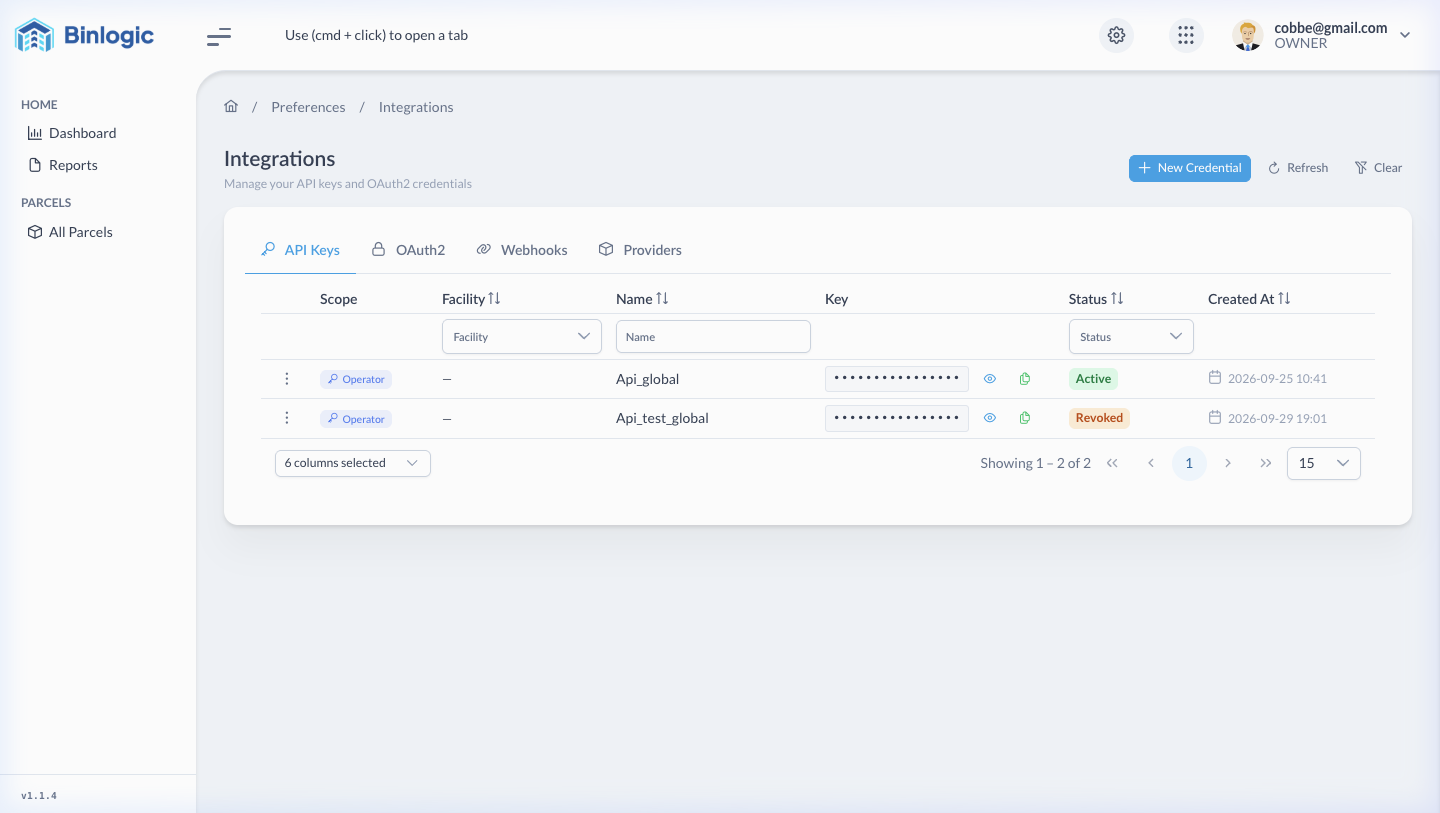
Main Integrations view showing your active API Keys with scope, name, status and management options.
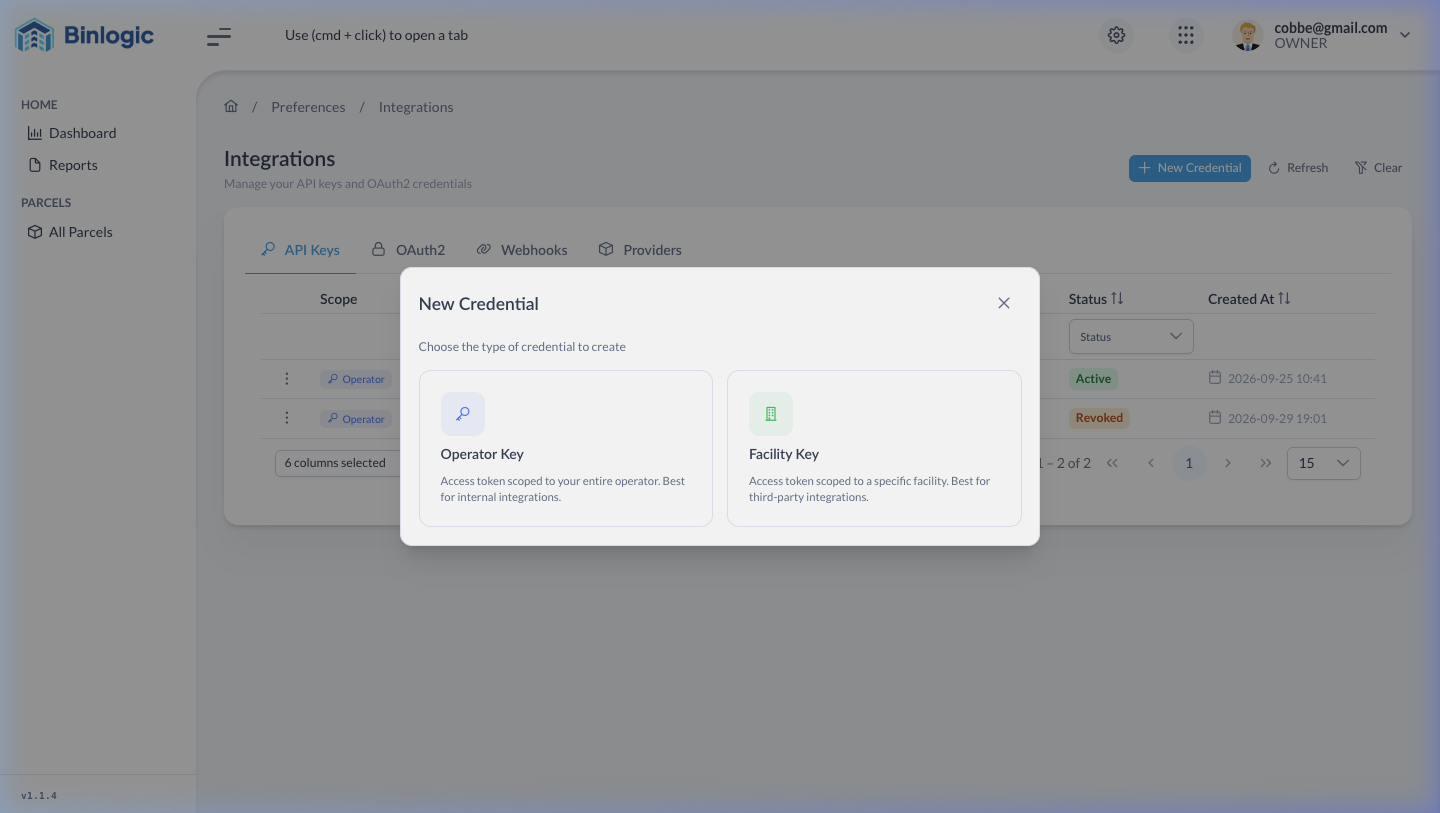
Click '+ New Credential' to create an Operator Key (global access) or Facility Key (limited access).
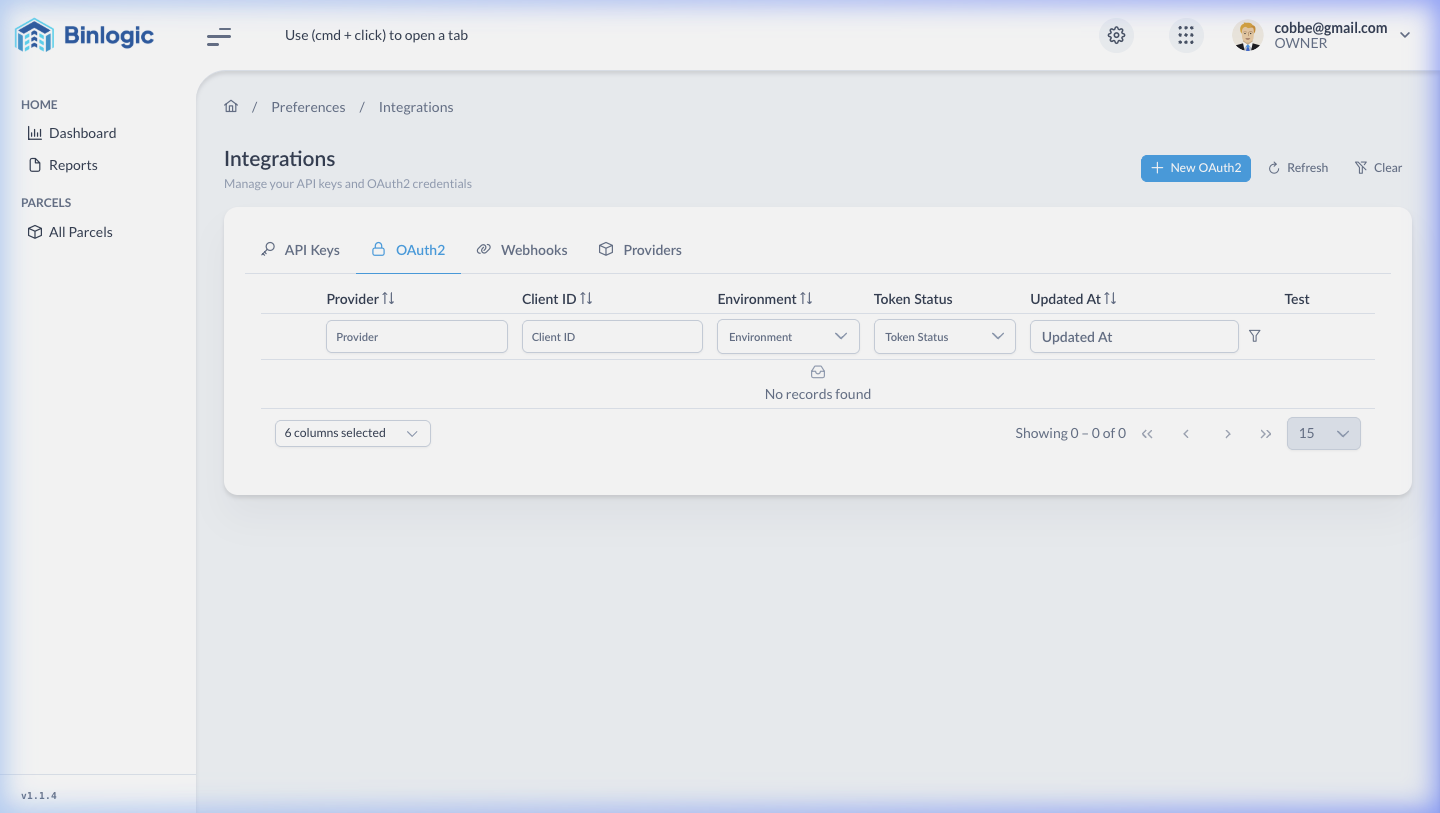
OAuth2 tab for configuring authentication clients for external applications.
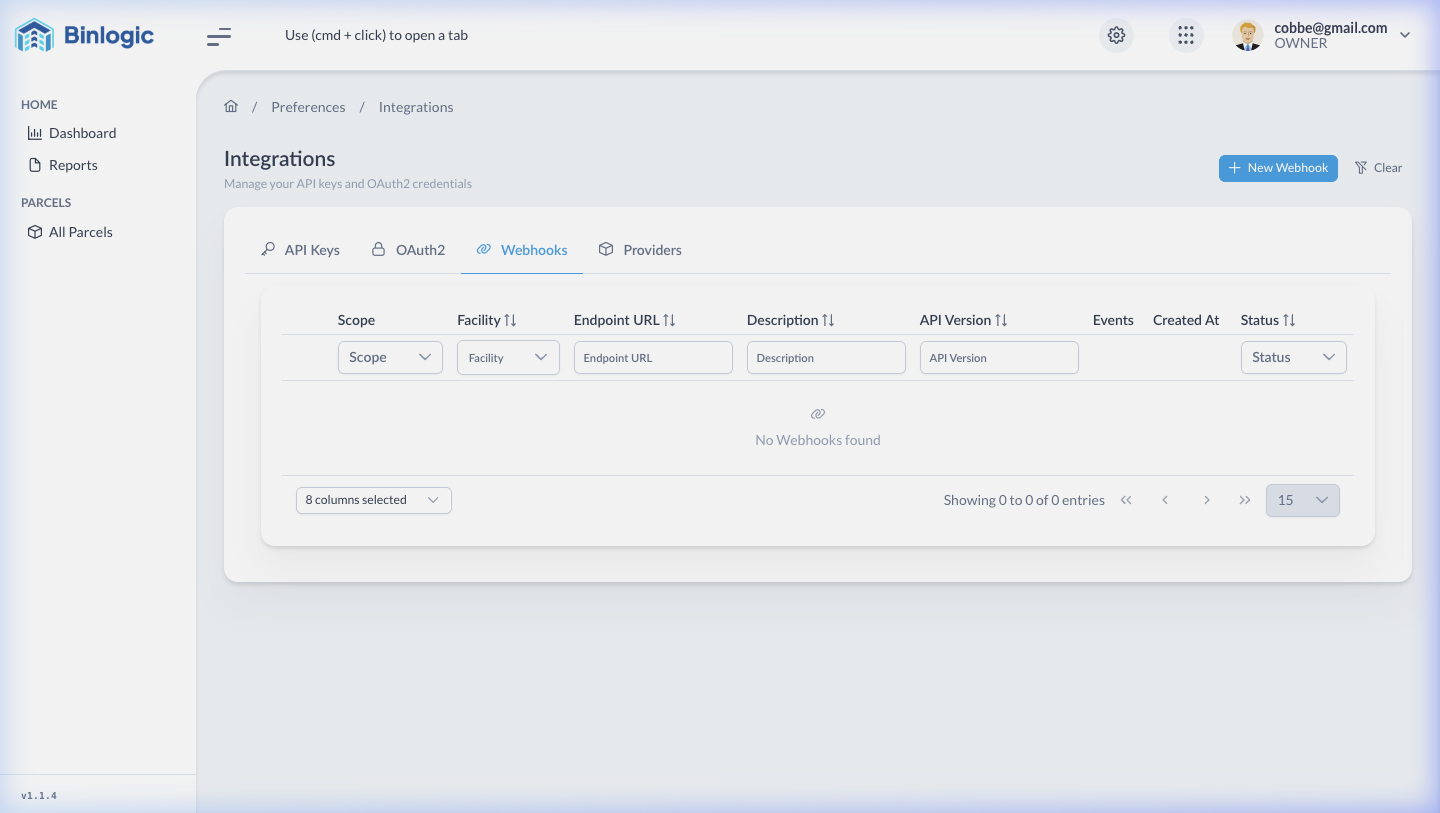
Configure HTTP endpoints to receive automatic notifications when events occur in Binlogic.
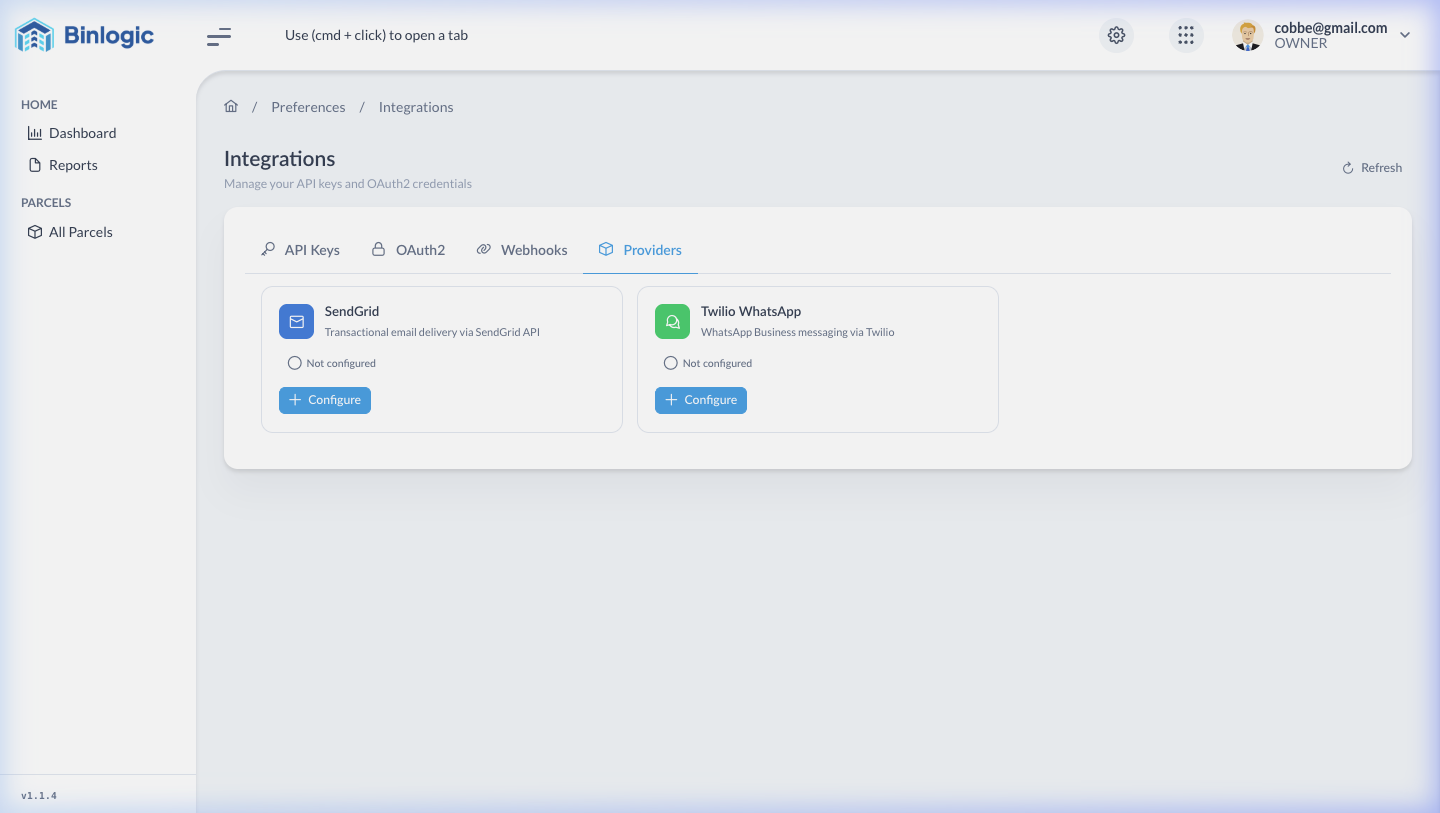
Connect SendGrid (transactional email) and Twilio (WhatsApp) for automatic customer notifications.
Demo completed!
API Keys
Token management for programmatic integrations with the Binlogic API.
Columns
Section titled “Columns”| Column | Description |
|---|---|
| Scope | Badge: Operator (global access) or Facility (per-facility access) |
| Facility | Associated facility (only for Facility-type keys) |
| Name | Descriptive key name |
| Key | Masked token •••••••• with 👁 (reveal) and 📋 (copy) buttons |
| Status | Active (green) or Revoked (amber) |
| Created At | Creation date |
Create a New API Key
Section titled “Create a New API Key”Click + New Credential to open the type selector:
| Type | Description | Best for |
|---|---|---|
| Operator Key | Token scoped to your entire operator account | Internal integrations, automation |
| Facility Key | Token limited to a specific facility | Third-party integrations, restricted access |
Operator Key Form
Section titled “Operator Key Form”| Field | Required | Description |
|---|---|---|
| Name | ✅ | Descriptive name to identify the key |
Facility Key Form
Section titled “Facility Key Form”| Field | Required | Description |
|---|---|---|
| Facility | ✅ | Facility the key will be linked to |
| Name | ✅ | Descriptive name |
Generated keys have the format opr_ + 64 hex characters. Copy the key immediately as you won’t be able to see it in full again after closing the modal.
Actions on Existing API Keys
Section titled “Actions on Existing API Keys”⋮ Menu on an active key:
| Option | Action |
|---|---|
| Revoke | Deactivate the key with confirmation: “Are you sure you want to revoke this API key?” |
⋮ Menu on a revoked key:
| Option | Action |
|---|---|
| Edit | Change the name |
| Activate | Reactivate the key |
OAuth2
OAuth2 client configuration for external application authentication.
Initial state: “No OAuth2 clients configured yet.”
Action: + Create OAuth2 Client button to configure a new client.
Webhooks
Configuration of HTTP endpoints that will receive automatic notifications when events occur in Binlogic.
Table Columns
Section titled “Table Columns”| Column | Description |
|---|---|
| Endpoint URL | URL of the service that will receive webhooks |
| Events | Events that trigger the notification |
| Status | Active / Inactive |
| Secret | Verification secret to validate authenticity |
| Created At | Creation date |
Action: + Add Webhook button to configure a new endpoint.
Providers
Integration with external services for customer communication.
SendGrid — Transactional Email
Section titled “SendGrid — Transactional Email”| Field | Placeholder | Required |
|---|---|---|
| API Key | SG.xxxxxxxxxxxxxxxxxxxx | ✅ |
| From Email | ops@yourcompany.com | ✅ |
| From Name | Operations | ❌ |
| Email Templates | Table with Language (EN/ES), Status, Actions | — |
Twilio WhatsApp — WhatsApp Messaging
Section titled “Twilio WhatsApp — WhatsApp Messaging”| Field | Placeholder | Required |
|---|---|---|
| Account SID | ACxxxxxxxxxxxxxxxxxxxxxxxxxxxxxxxx | ✅ |
| Auth Token | your_auth_token (with show/hide toggle) | ✅ |
| WhatsApp From Number | whatsapp:+14155238886 | ✅ |
| Text Template SID | MGxxxxxxxxxxxxxxxxxxxxxxxxxxxxxxxx | ❌ |
| Image Template SID | MGxxxxxxxxxxxxxxxxxxxxxxxxxxxxxxxx | ❌ |