
Users
Copied! Paste it into your favorite AI (Ctrl/Cmd+V)
Users
The Users section allows you to manage user access to your Binlogic account, assign roles and link specific facilities.
Path: ⚙️ → Users
1
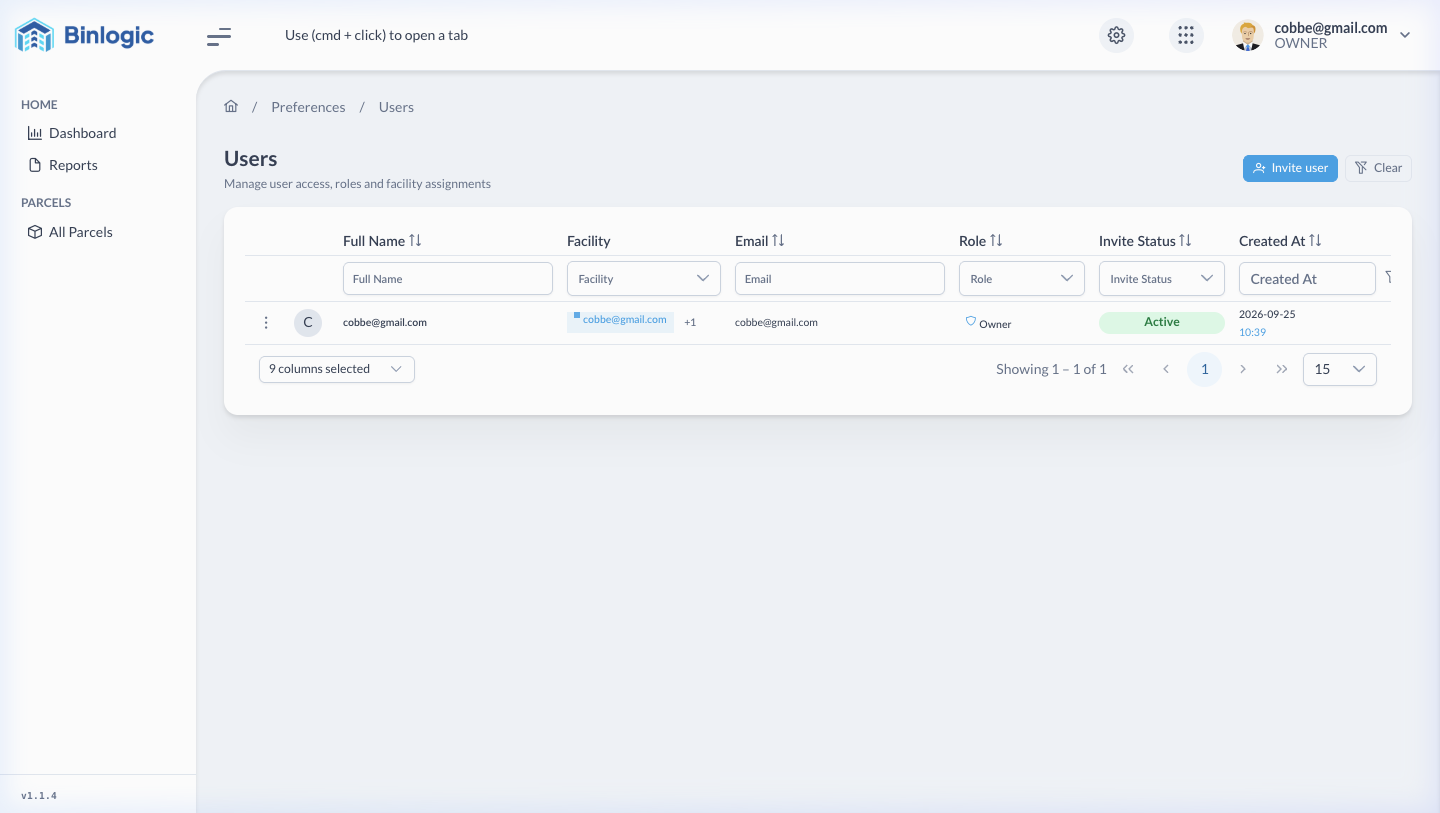
User List
Complete view of all users with their role, facility, invitation status and last login.
2
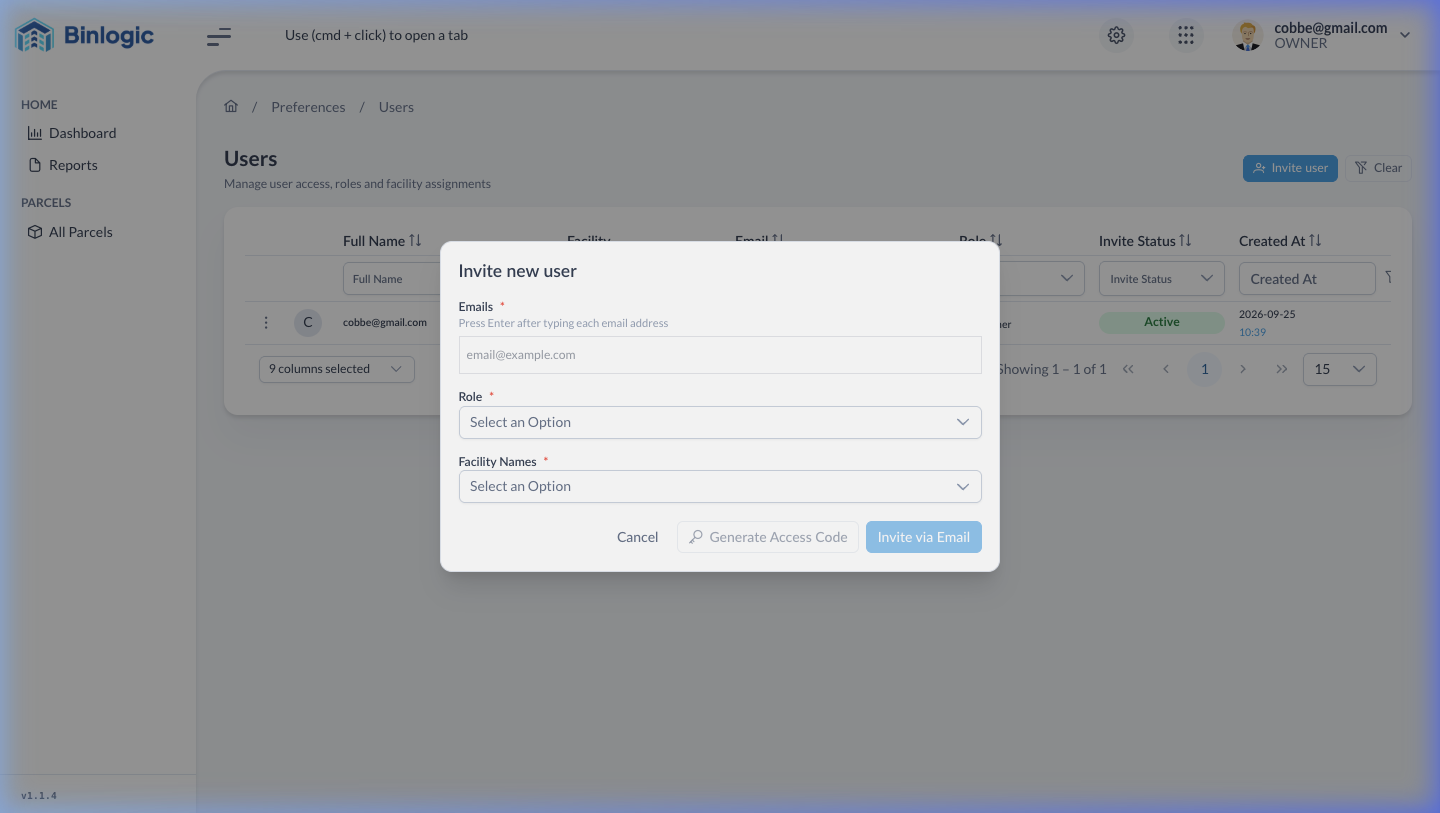
Invite User
Click '+ Invite user' to open the form. Enter emails, select role (Dispatcher/Owner) and facilities.
3
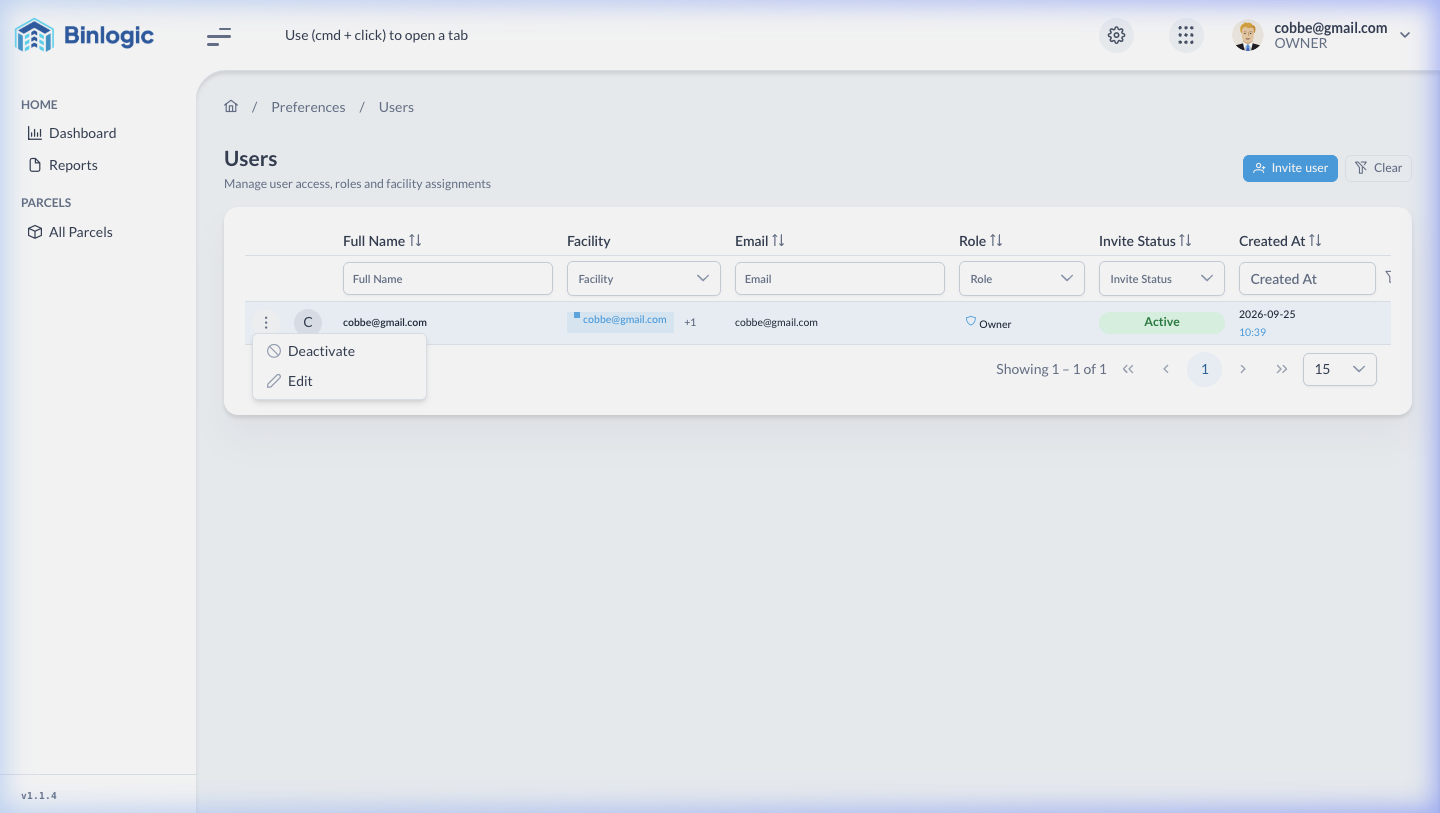
User Actions
Use the ⋮ (three dots) menu to edit the role/facilities or deactivate the user account.
Demo completed!
1 of 3
Available Columns
| Column | Description |
|---|---|
| Avatar | User profile picture |
| Full Name | Full name |
| Facility | Assigned facilities |
| Email address | |
| Role | User role (Owner, Dispatcher) |
| Invite Status | Invitation status (Active, Pending) |
| Created At | Creation date |
| Last Login | Last login date |
| Access | Access status |
Invite a New User
Click the + Invite user button (blue, top right corner) to open the invitation modal:
Form Fields
Section titled “Form Fields”| Field | Type | Required | Description |
|---|---|---|---|
| Emails | Tag input | ✅ | Enter one or more emails. Press Enter after each one |
| Role | Dropdown | ✅ | Select: Dispatcher or Owner |
| Facility Names | Multi-select | ✅ | Assign one or more facilities to the user |
Action Buttons
Section titled “Action Buttons”| Button | Function |
|---|---|
| Cancel | Close the modal without saving |
| Generate Access Code | Generate an access code you can share manually |
| Invite via Email | Send the invitation directly by email |
User Actions
Click the ⋮ (three dots) menu to the left of each user to see the options:
| Option | Function |
|---|---|
| Edit | Modify the user’s role and assigned facilities |
| Deactivate | Deactivate the user account (doesn’t delete it) |
Deactivating a user immediately revokes their access. The user won’t be able to log in until reactivated.