

Facilities
Facilities
Facilities represent the physical locations (warehouses, distribution centers, pickup points) where your business operates. Each facility has its own address, configuration and storage slots.
Path: ⚙️ → Facility
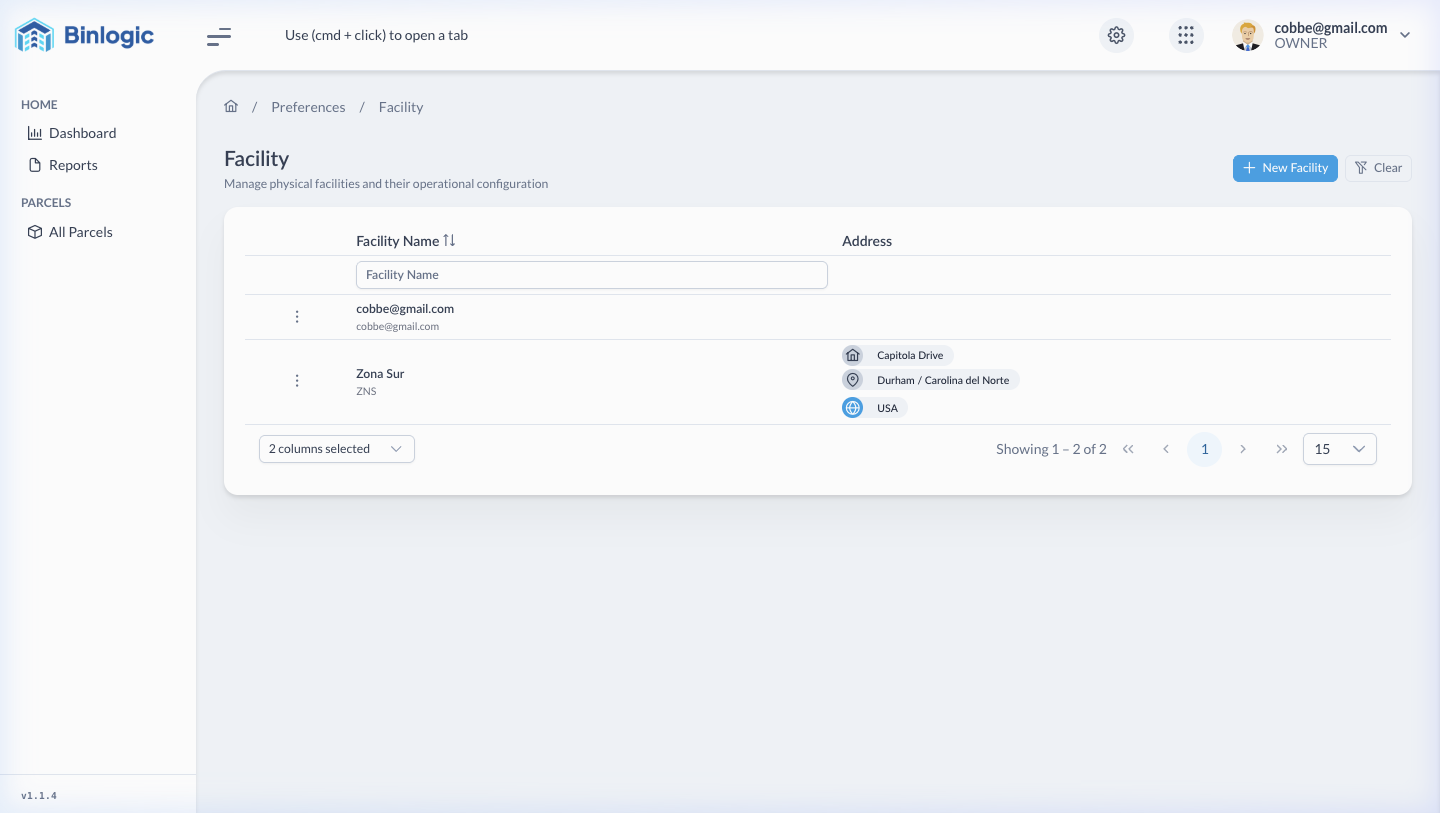
View of all registered facilities with name, code and address.
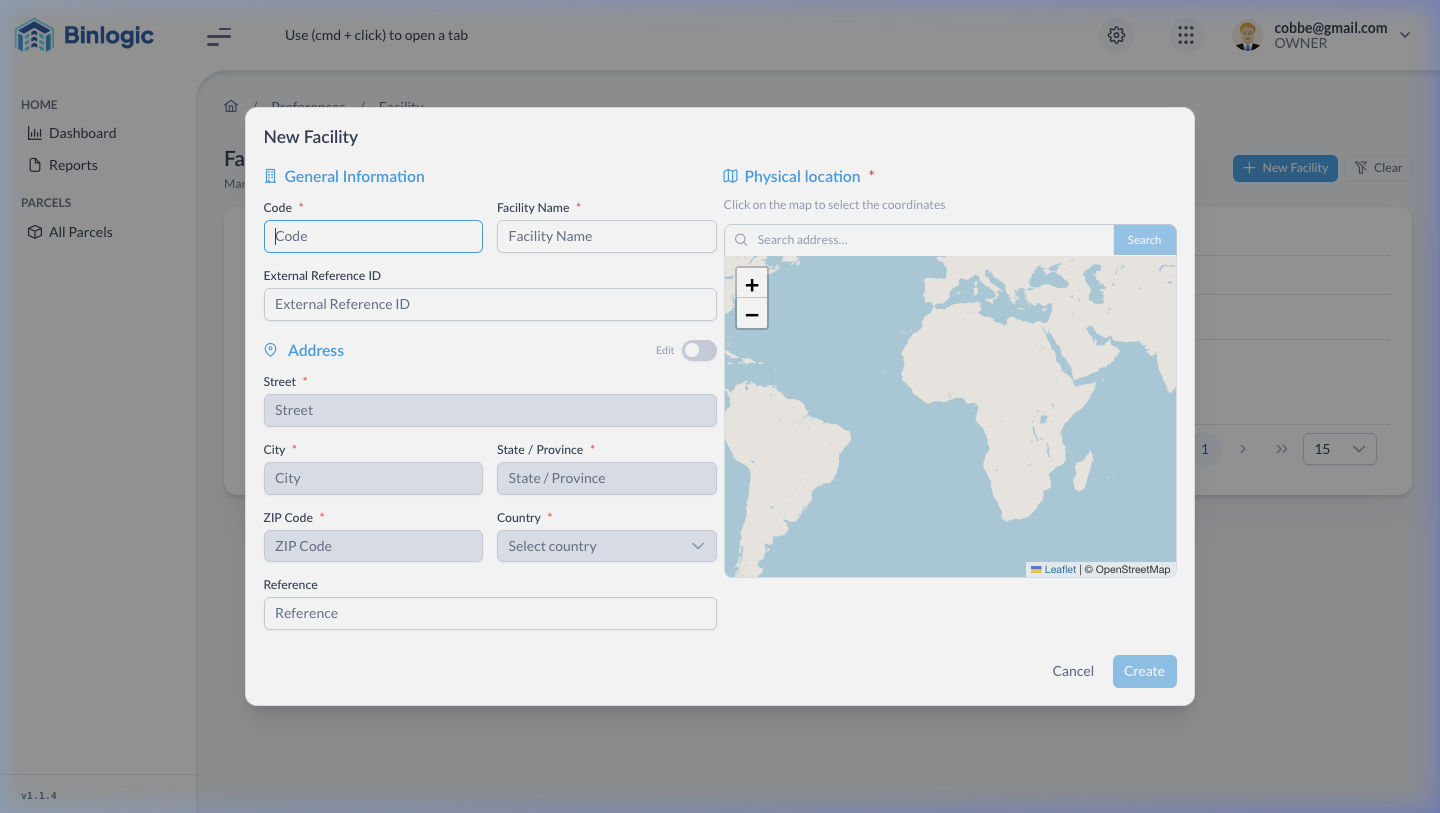
Click '+ New Facility' to open the form. Complete Code, Name, address and locate on the map.
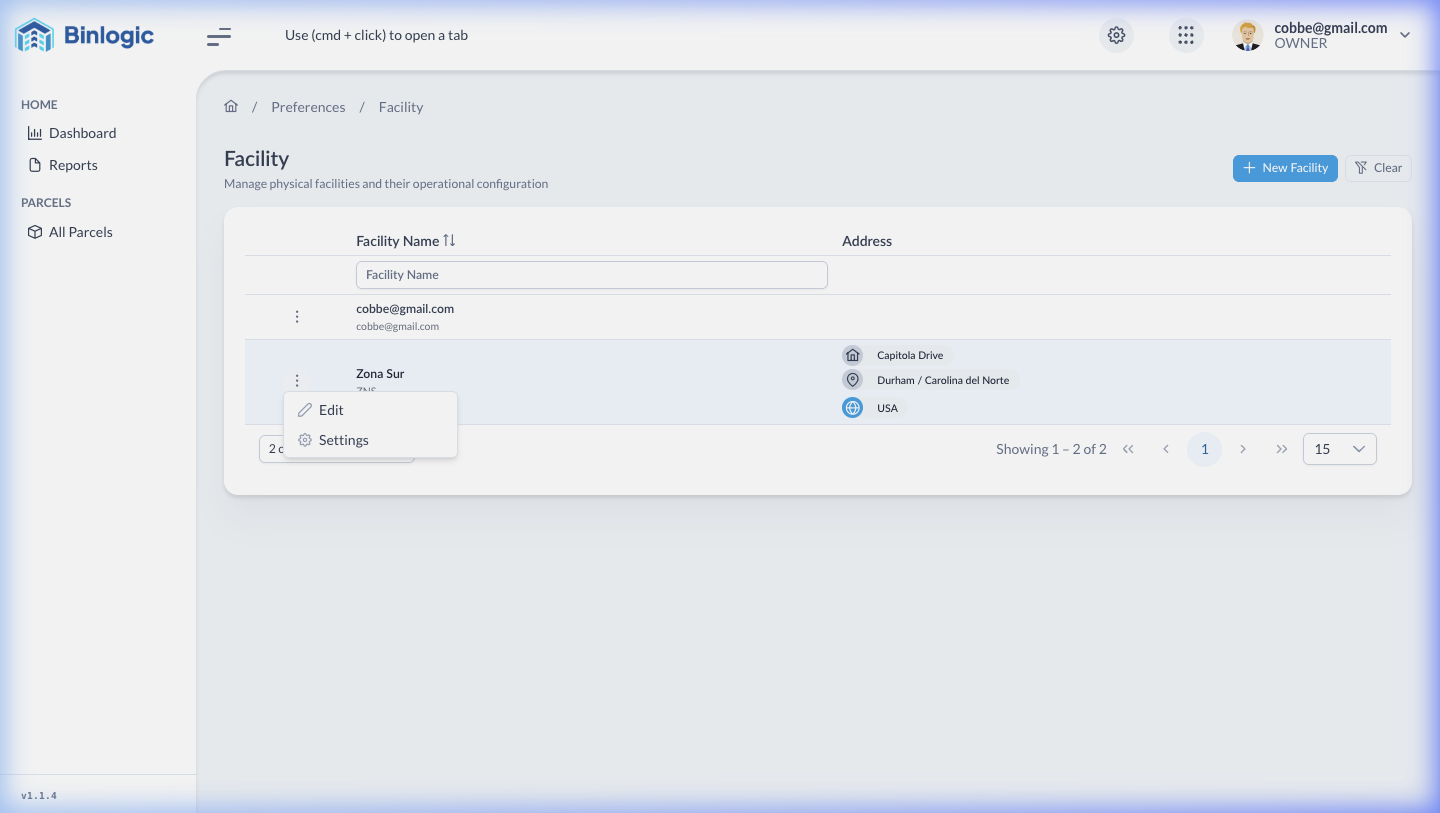
Click ⋮ next to a facility to Edit or access Settings.
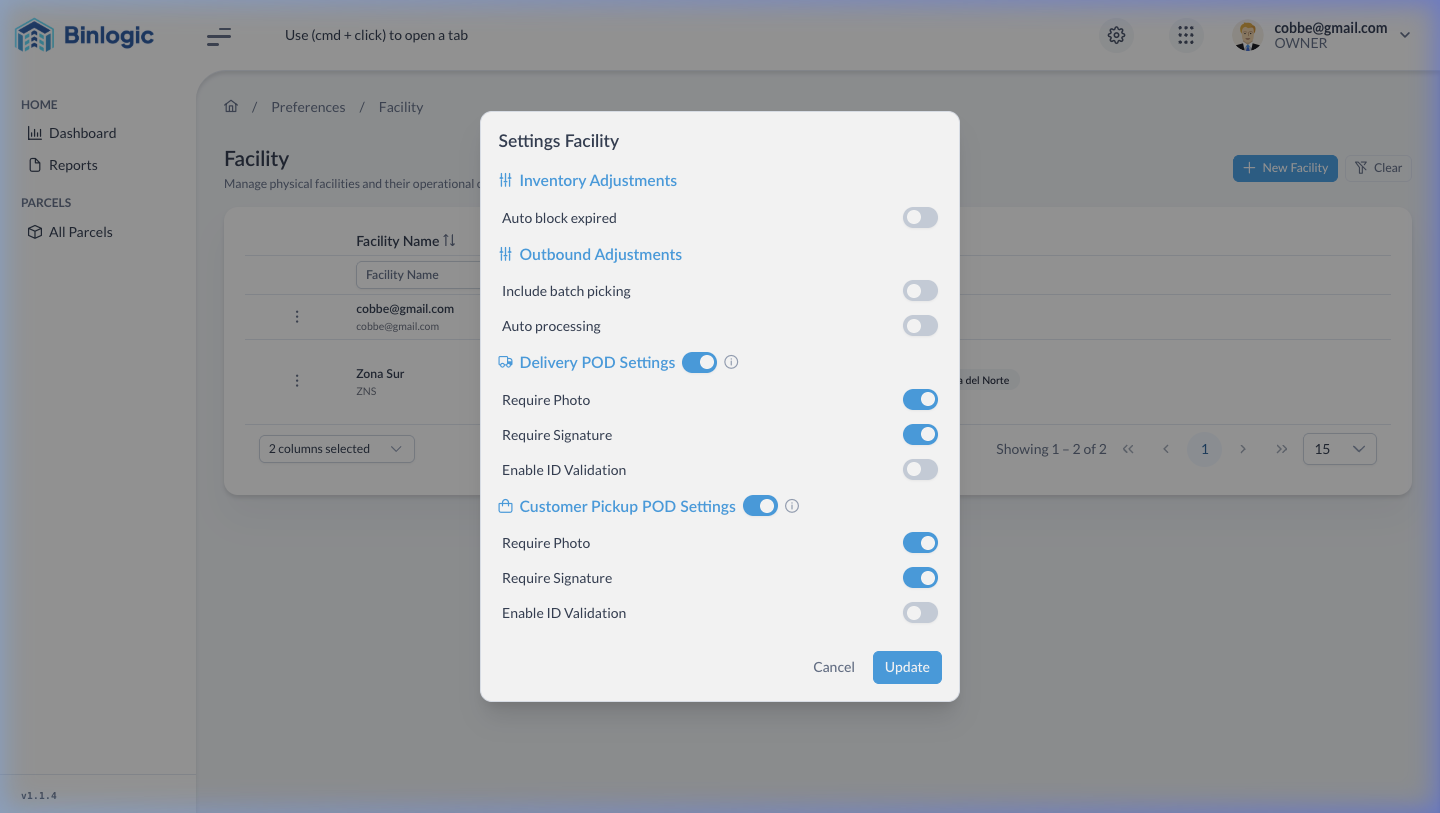
Settings includes Inventory Adjustments, Outbound Adjustments, Delivery POD and Customer Pickup POD.
Demo completed!
Table Information
| Column | Description |
|---|---|
| Facility Name | Facility name + internal code |
| Address | Full address (street, city, state, country) |
Create a New Facility
Click + New Facility to open the creation form:
Form Fields
Section titled “Form Fields”| Field | Type | Required | Description |
|---|---|---|---|
| Code | Text | ✅ | Short identifier code (e.g., ZNS, MIA01) |
| Facility Name | Text | ✅ | Descriptive facility name |
| External Reference ID | Text | ❌ | External reference ID for integrations |
Section: Address
Section titled “Section: Address”| Field | Type | Required |
|---|---|---|
| Street | Text | ✅ |
| City | Text | ✅ |
| State / Province | Text | ✅ |
| ZIP Code | Text | ✅ |
| Country | Text | ✅ |
| Reference | Text | ❌ |
| Edit | Toggle switch | — |
Section: Physical Location
Section titled “Section: Physical Location”Includes an interactive Leaflet map where you can:
- Search for an address by typing in the “Search address…” field
- Click on the map to mark the exact location
- The map updates automatically with coordinates
Buttons: Cancel | Create
Facility Actions
Each facility has a ⋮ menu with two options:
| Option | Function |
|---|---|
| Edit | Modify name, code, address and location |
| Settings | Open advanced operational configuration |
Facility Settings
The “Settings Facility” modal contains advanced operational configuration:
| Section | Content |
|---|---|
| Inventory Adjustments | Rules for automatic inventory adjustments |
| Outbound Adjustments | Configuration for outbound operation adjustments |
| Delivery POD Settings | Proof of Delivery configuration (signature, photo, notes) |
| Customer Pickup POD Settings | POD for customer point pickups |
POD (Proof of Delivery) configuration is essential for operations that require delivery confirmation with photographic evidence or digital signature.