

All Parcels
All Parcels
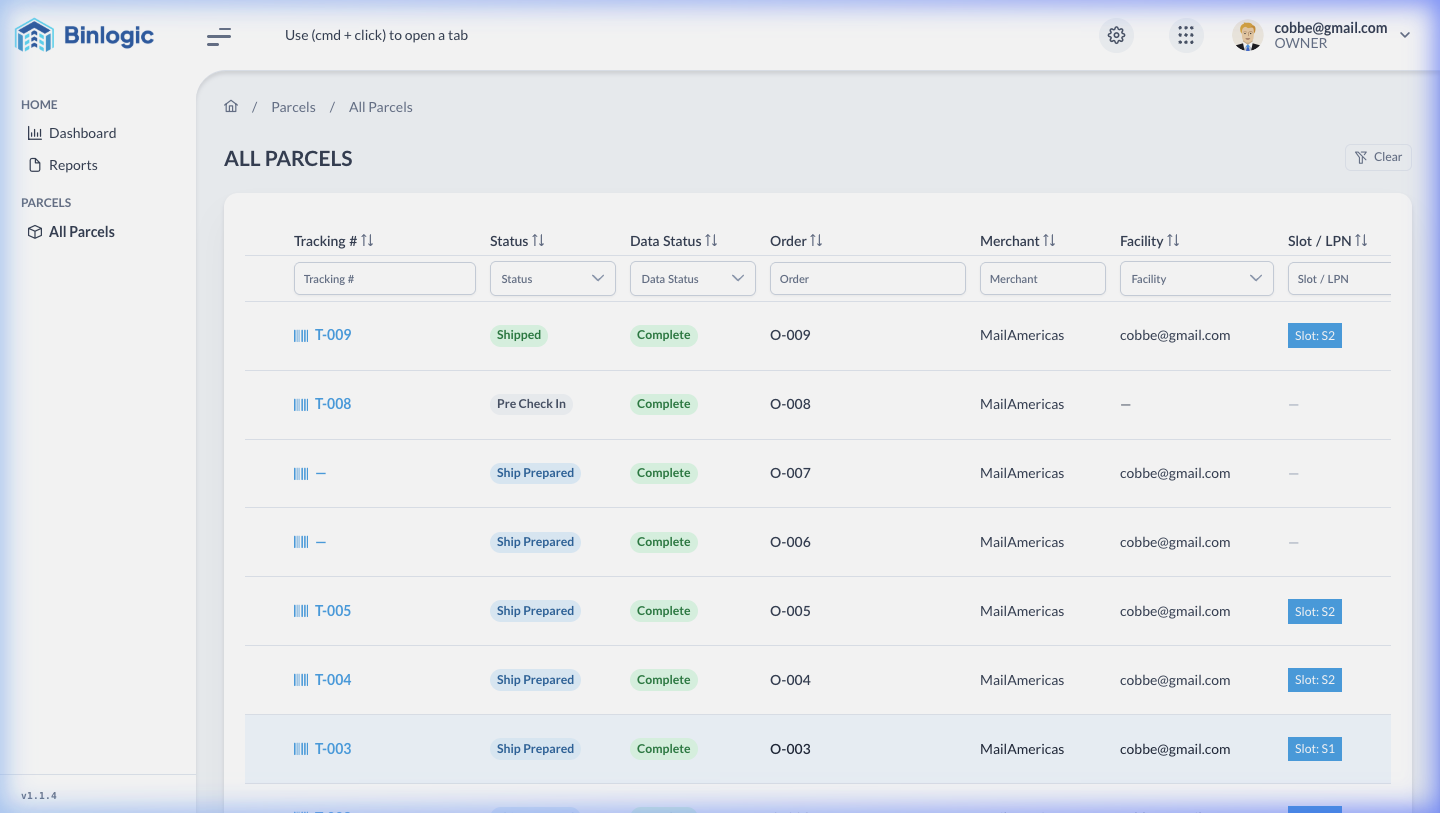
The All Parcels view centralizes all packages registered in your system. From here you can search, filter and view the details of each parcel.
Path: Sidebar → Parcels → All Parcels
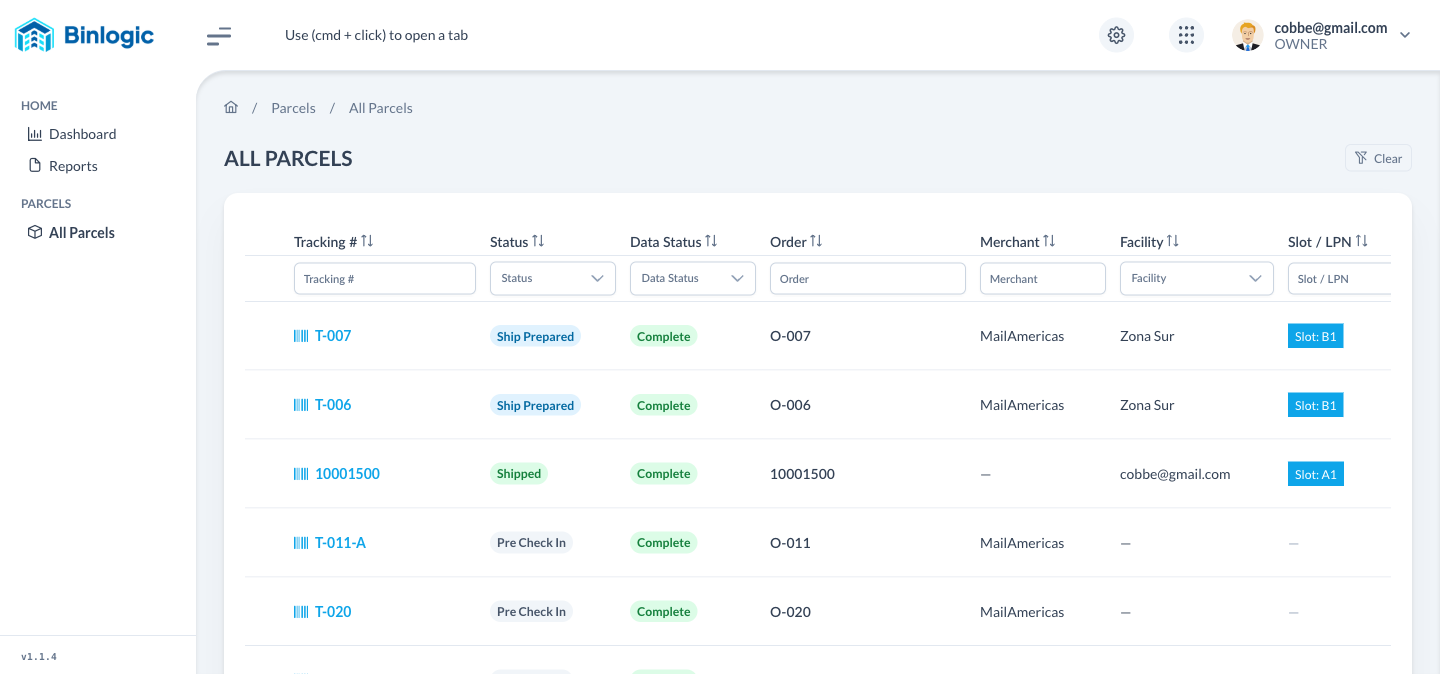
The table shows all parcels with their statuses, merchants and locations. Use the filters on each column to search.
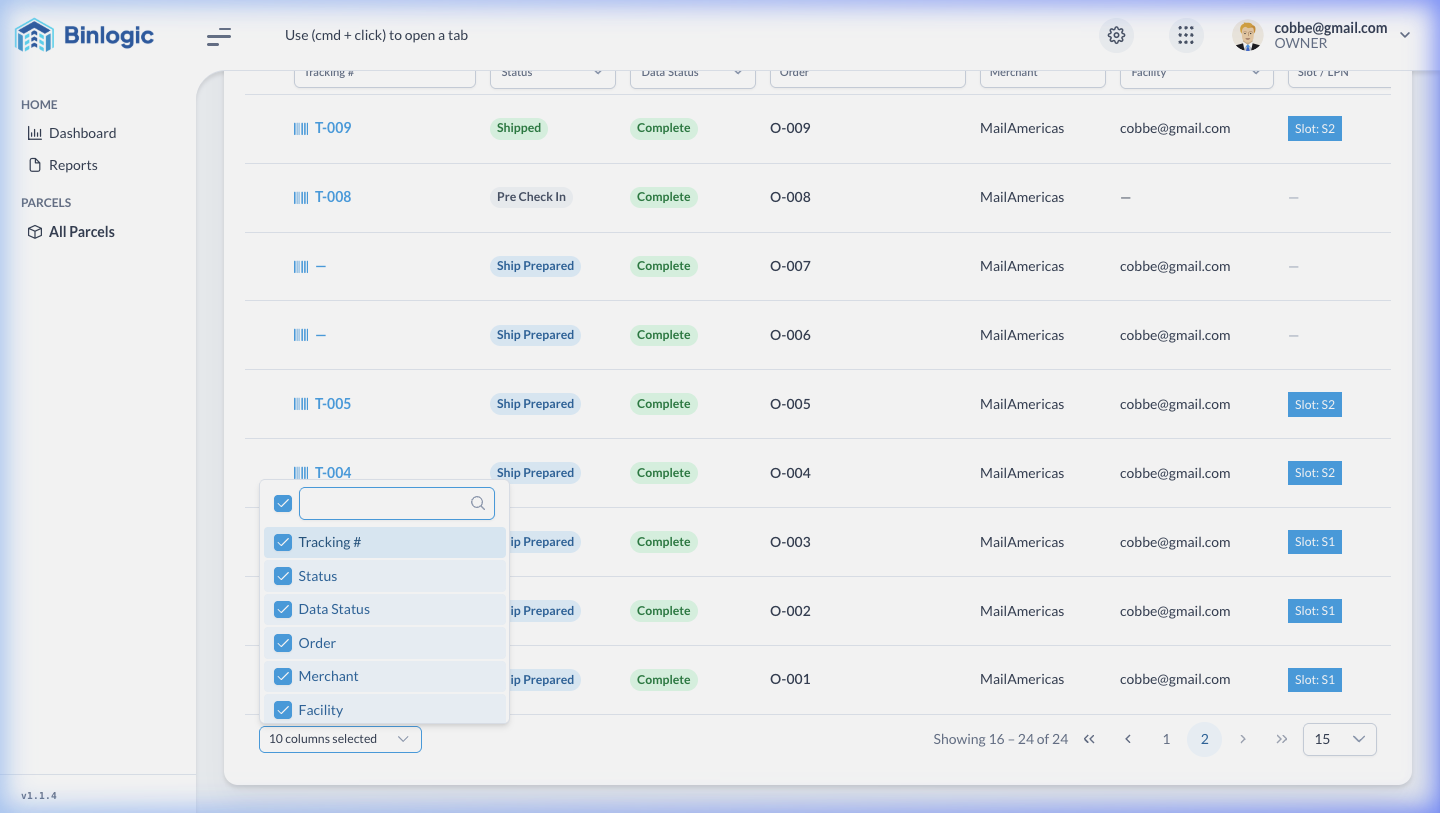
Click '10 columns selected' at the bottom to show or hide columns like Ship Details or Created At.
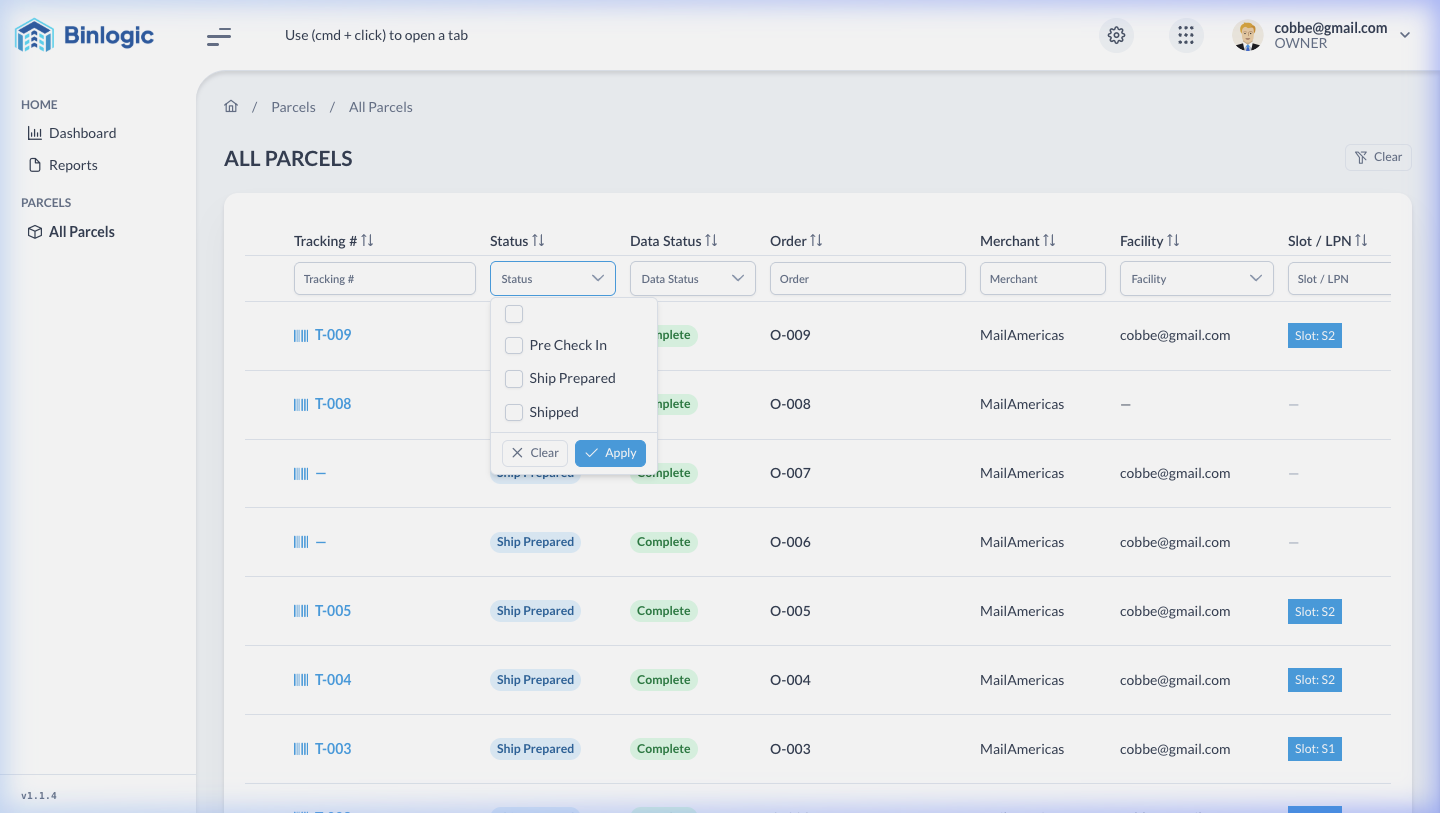
Use the Status dropdown to filter by status: Pre Check In, Ship Prepared, or Shipped. Each column has its own filter.
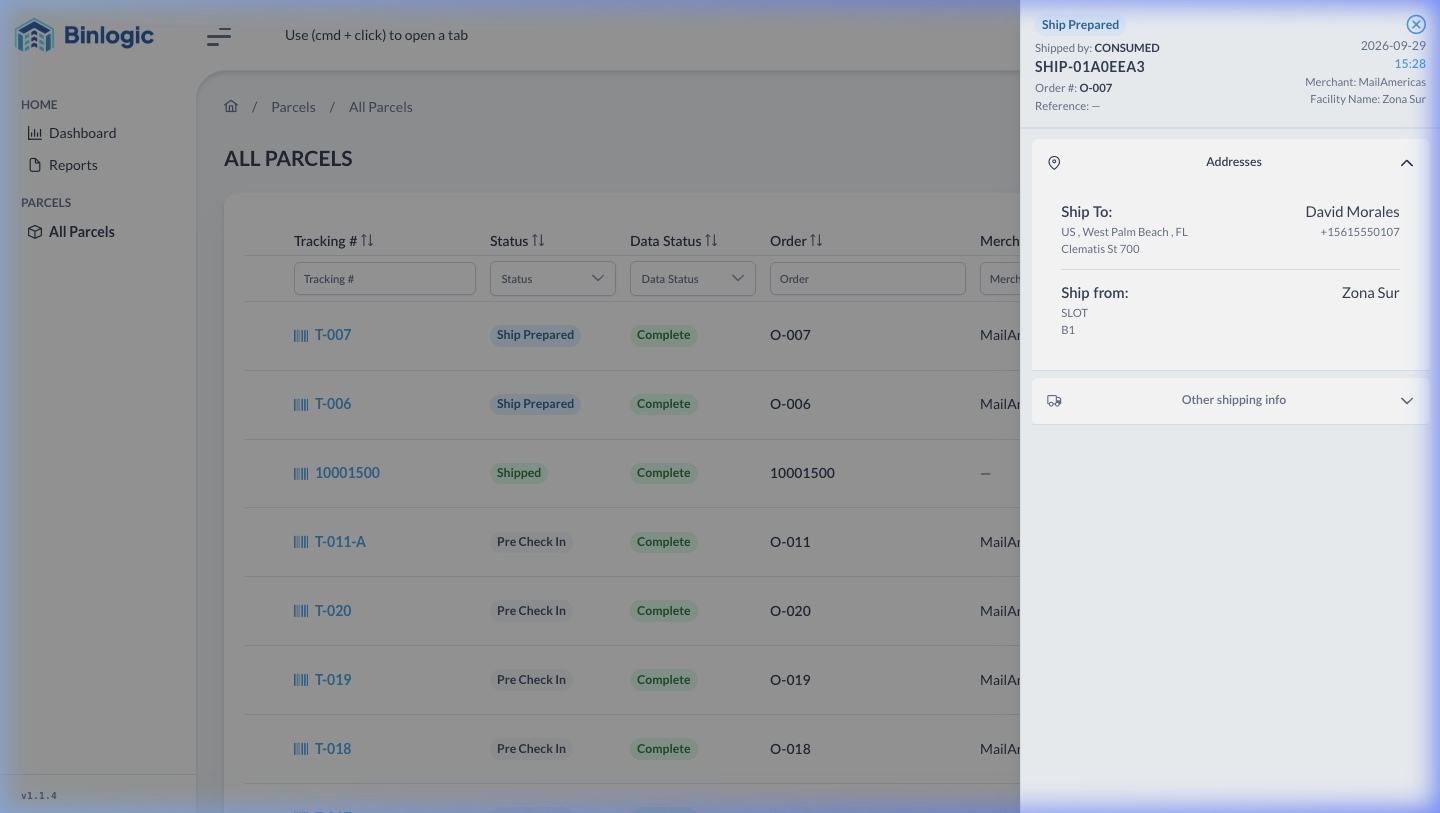
Click the blue Tracking # to open the side panel with addresses, shipping data and full parcel details.
Navigate between pages using the bottom controls. Configure rows per page (5, 10, 15, 25, 50).
Demo completed!
Table Columns
The table shows 7 visible columns by default (out of 10 available):
| Column | Visible | Description |
|---|---|---|
| Tracking # | ✅ | Unique tracking number for the parcel |
| Status | ✅ | Current parcel status |
| Data Status | ✅ | Data completeness of the parcel |
| Order | ✅ | Associated order number |
| Merchant | ✅ | Owner merchant/store |
| Facility | ✅ | Warehouse/facility where it’s located |
| Slot / LPN | ✅ | Physical location (slot) or License Plate Number |
| Ship Details | ❌ | Shipping details (hidden by default) |
| Created At | ❌ | Creation date (hidden by default) |
| Date Shipped | ❌ | Shipping date (hidden by default) |
Available Filters
Each column has a built-in filter directly below the header:
| Filter | Type | Options |
|---|---|---|
| Tracking # | Free text | Partial search |
| Status | Dropdown | Pre Check In, Ship Prepared, Shipped |
| Data Status | Dropdown | Complete, Incomplete |
| Order | Free text | Partial search |
| Merchant | Free text | Partial search |
| Facility | Dropdown | —, cobbe@gmail.com, Zona Sur |
| Slot / LPN | Free text | Partial search |
Use the Clear button (top right corner) to clear all filters at once.
Detail Panel
Clicking a Tracking # (blue text) opens a right side panel with the complete parcel information:
Addresses
Section titled “Addresses”| Field | Content |
|---|---|
| Ship To | Full name and address of the recipient |
| Ship From | Sender name and address |
Other Shipping Info (expandable accordion)
Section titled “Other Shipping Info (expandable accordion)”| Field | Content |
|---|---|
| Carrier | Shipping company |
| Shipping Method | Selected shipping method |
| Order Details | Associated order information |
| Delivery Details | Delivery details |
Pagination
The table supports pagination to handle large volumes of parcels. The controls are located at the bottom of the table, below the results.
- Navigation: First, Previous, 1, 2, …, Next, Last
- Rows per page: Configurable (5, 10, 15, 25, 50)
- Default: 15 rows per page