
Access & Login
Access to Binlogic
Access your Binlogic account by logging in with your username and password. The system includes security features like password reset and account protection. Accounts linked to SSO must use Continue with Single Sign-On (SSO).
Prerequisites
Section titled “Prerequisites”- An active account in the Novacrest ecosystem
- Modern web browser (Chrome, Firefox, Edge, Safari)
- Internet connection
Login Process
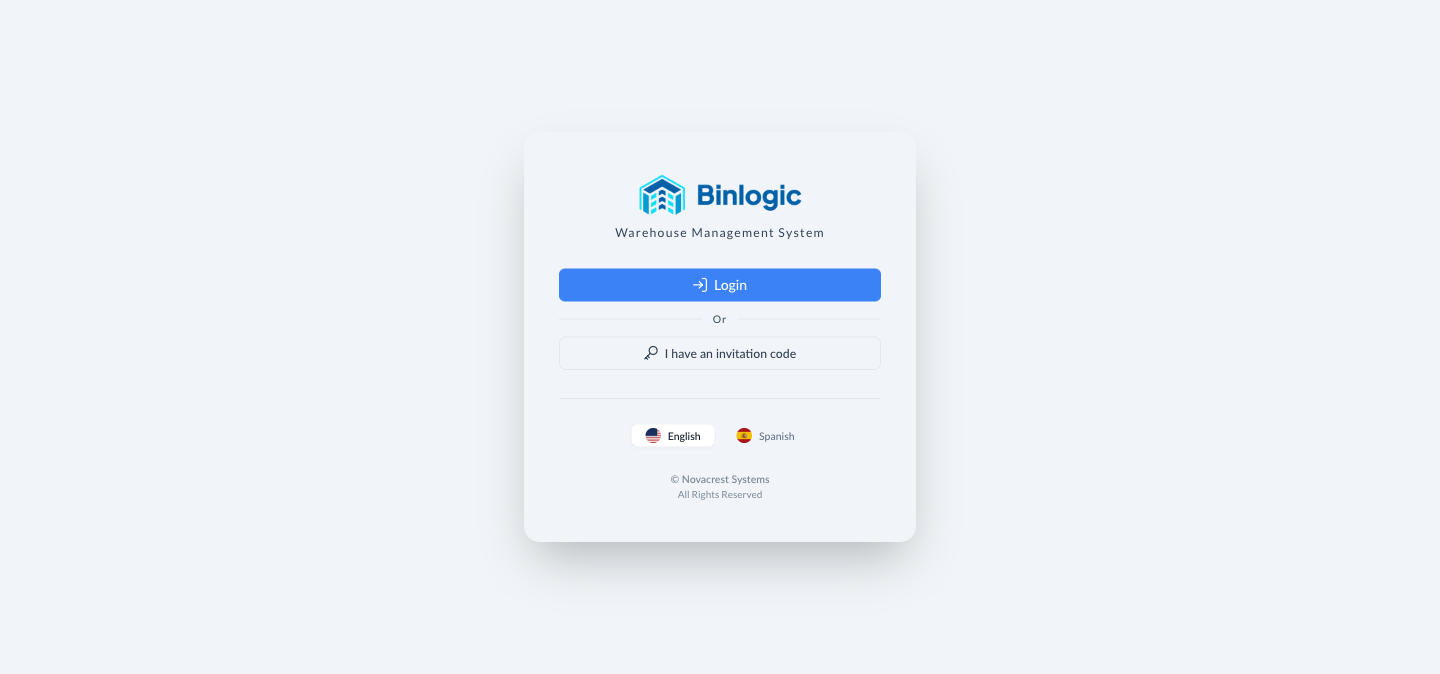
Access your Binlogic instance. Click Login to sign in with SSO, or use an invitation code if you're a new user.
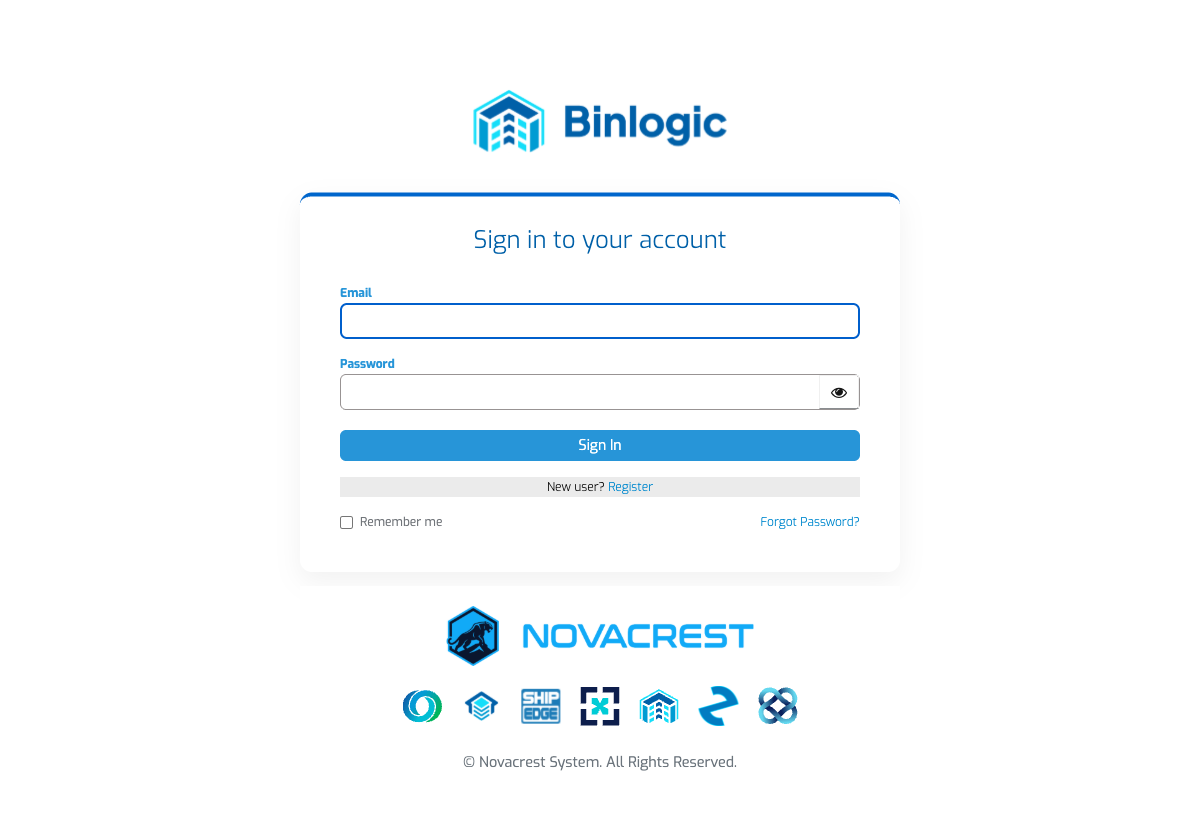
Enter your email and password and click Sign In to complete access.
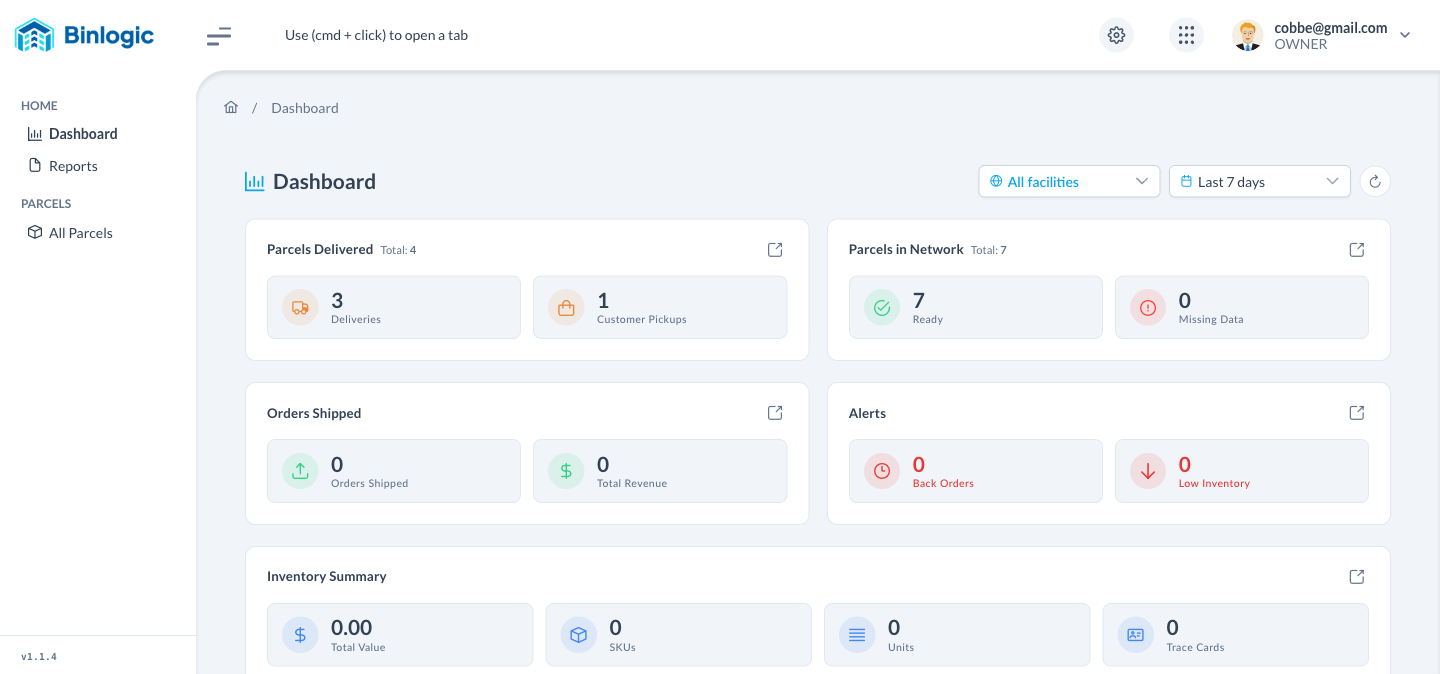
You've successfully signed in. From here you can navigate to all sections of Binlogic.
Demo completed!
Step 1 — Binlogic Welcome Page
Section titled “Step 1 — Binlogic Welcome Page”Access your Binlogic instance (e.g., https://bl8.binlogic.io). You’ll see the welcome screen with two options:
- Login — Sign in with your existing SSO account
- I have an invitation code — For new users who received an invitation code
You can choose the interface language: English or Spanish.
Step 2 — Authentication
Section titled “Step 2 — Authentication”After clicking Login, enter your access credentials:
| Field | Description |
|---|---|
| Username or email | Your registered email address |
| Password | Your access password |
Click Sign In to complete the authentication.
Step 3 — Dashboard
Section titled “Step 3 — Dashboard”After successfully authenticating, you’ll be automatically redirected to the Binlogic Dashboard.
Main Navigation
Once inside, you’ll find these navigation elements:
| Element | Location | Function |
|---|---|---|
| Sidebar (left) | Side panel | Dashboard, Reports, All Parcels |
| Gear icon (⚙️) | Right header | Access to Users, Facility, Developer |
| App Switcher (⫶⫶⫶) | Right header | Switch between ecosystem apps |
| User Menu | Right header | Manage Account, Log Out |